
Screenshots
Capture the visible area, a selection, or a full page. Choose a window or screen through Chrome, and edit your image before exporting.
Selected area · Full page · Image editingTake screenshots, record tab audio with optional microphone input, and keep your captures organized in a library on your device. One Chrome extension, in Arabic and English.
Use the buttons to switch interface screenshots. Capture and editing controls work in the installed extension.
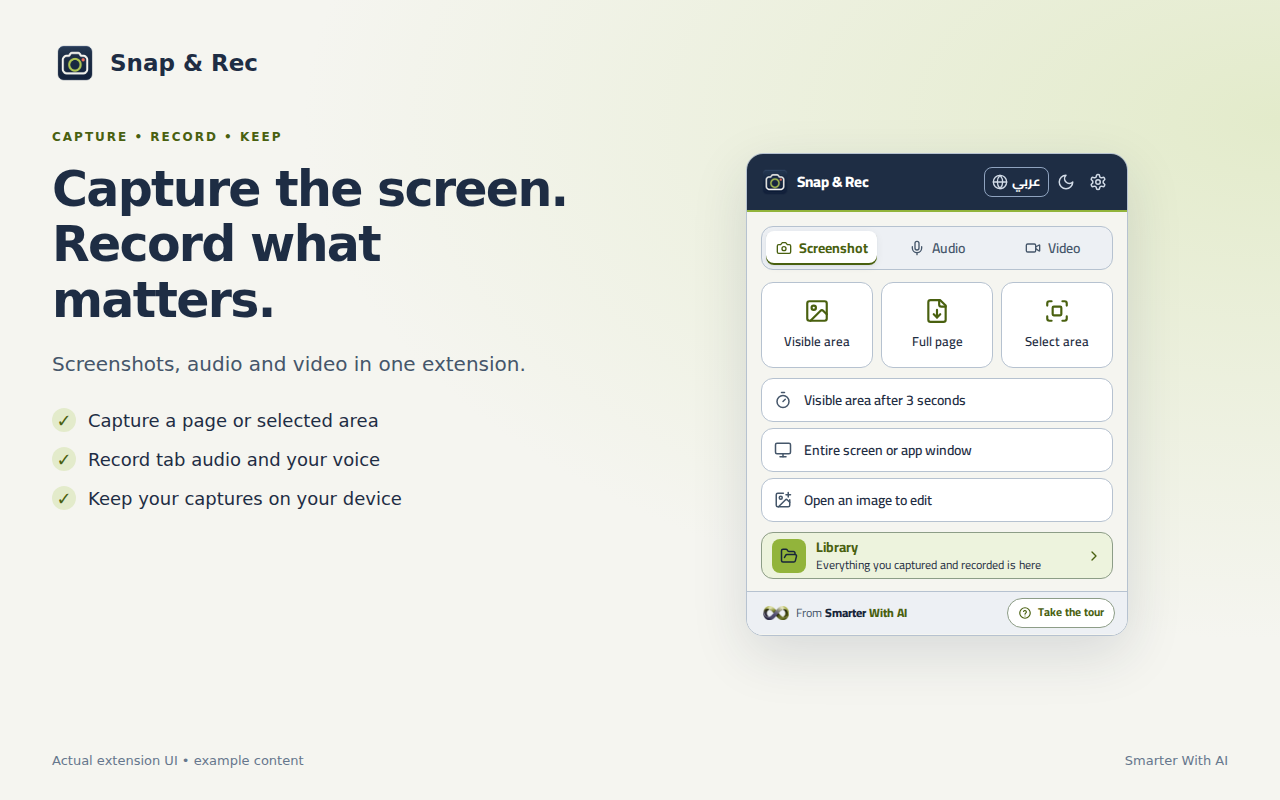
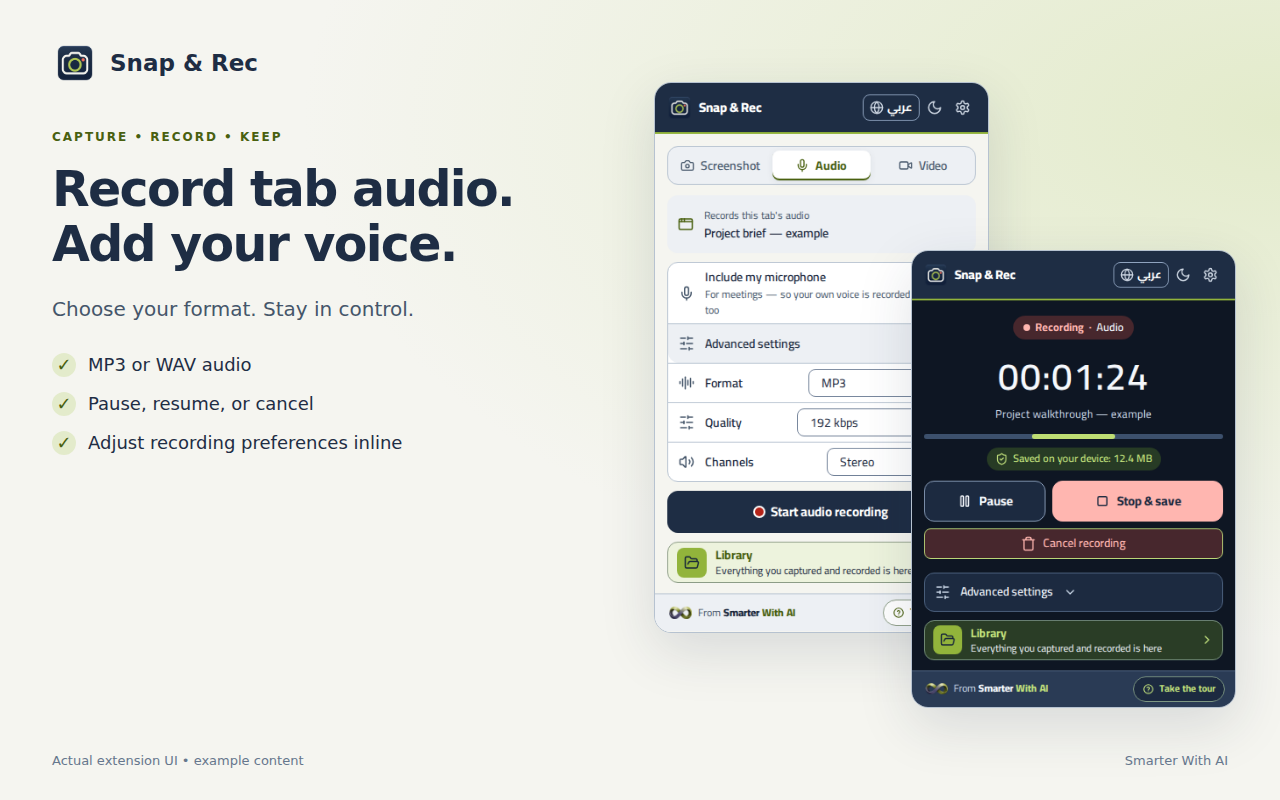
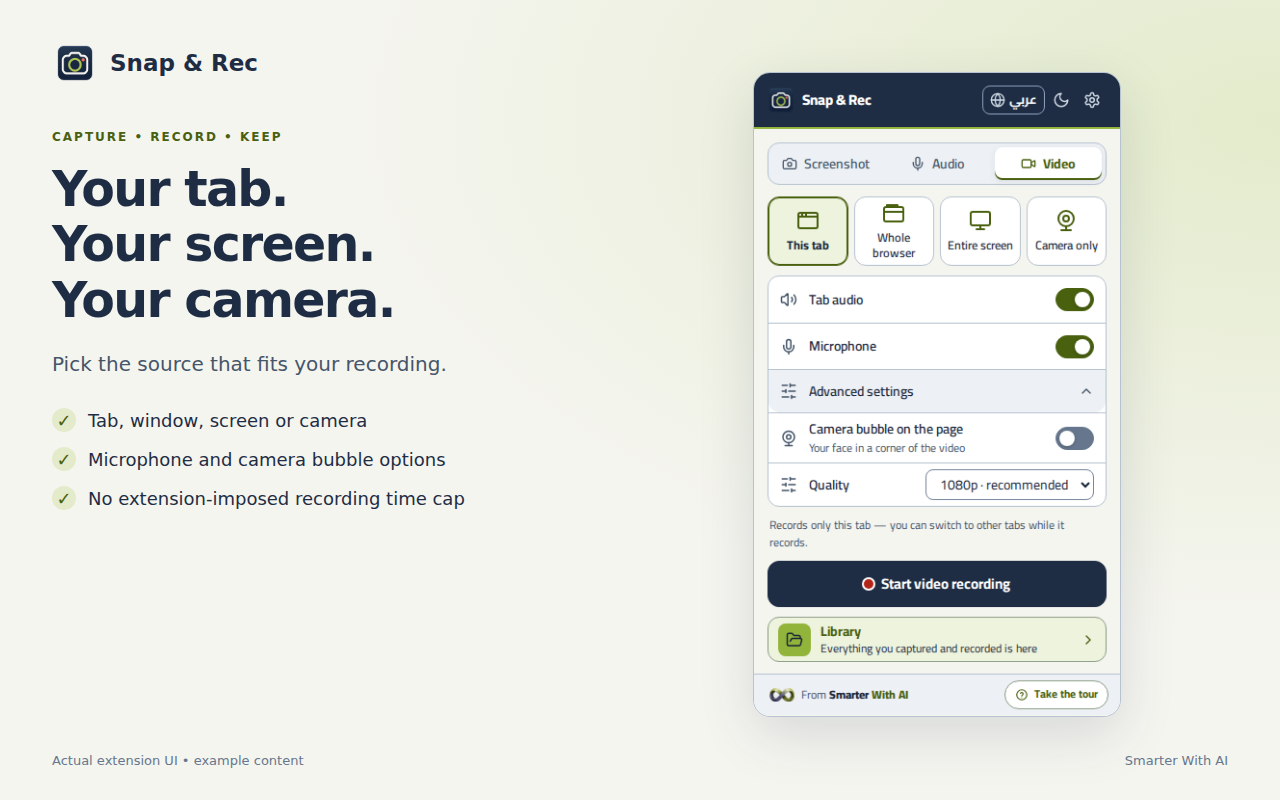
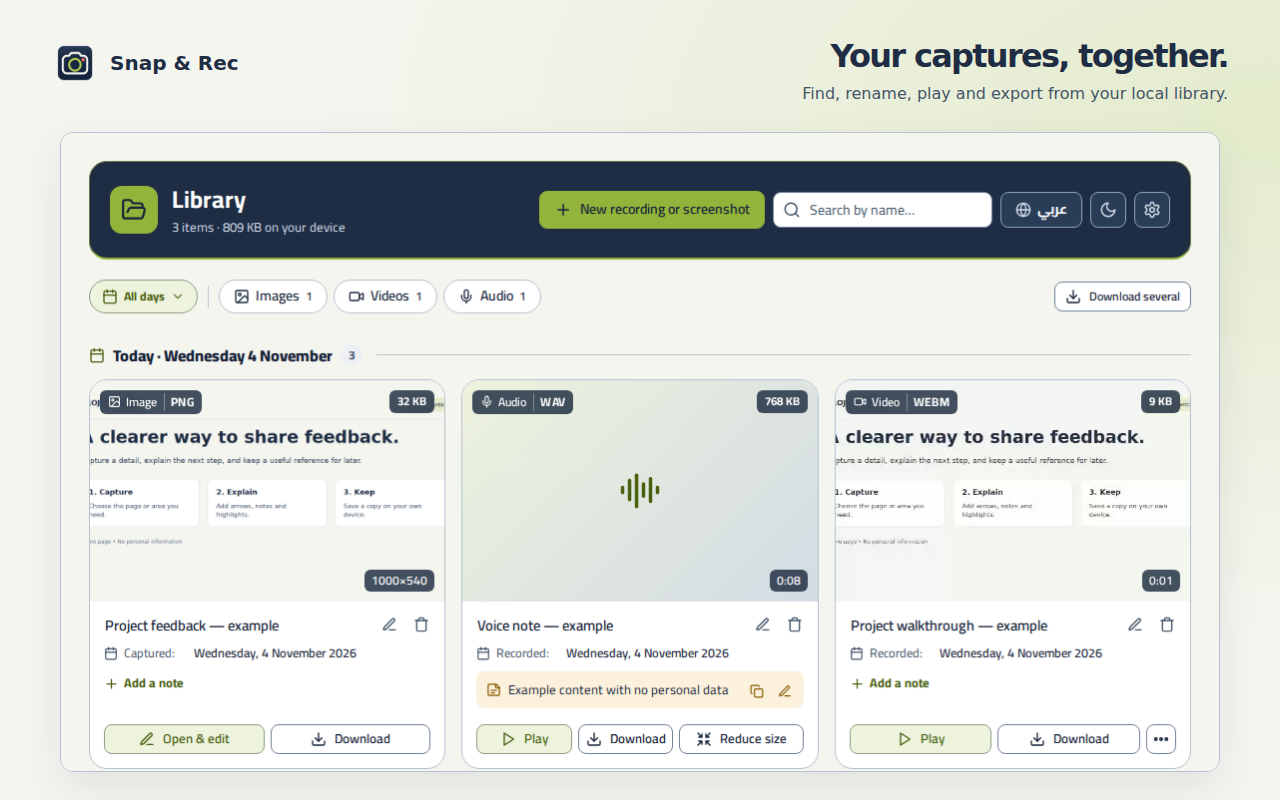
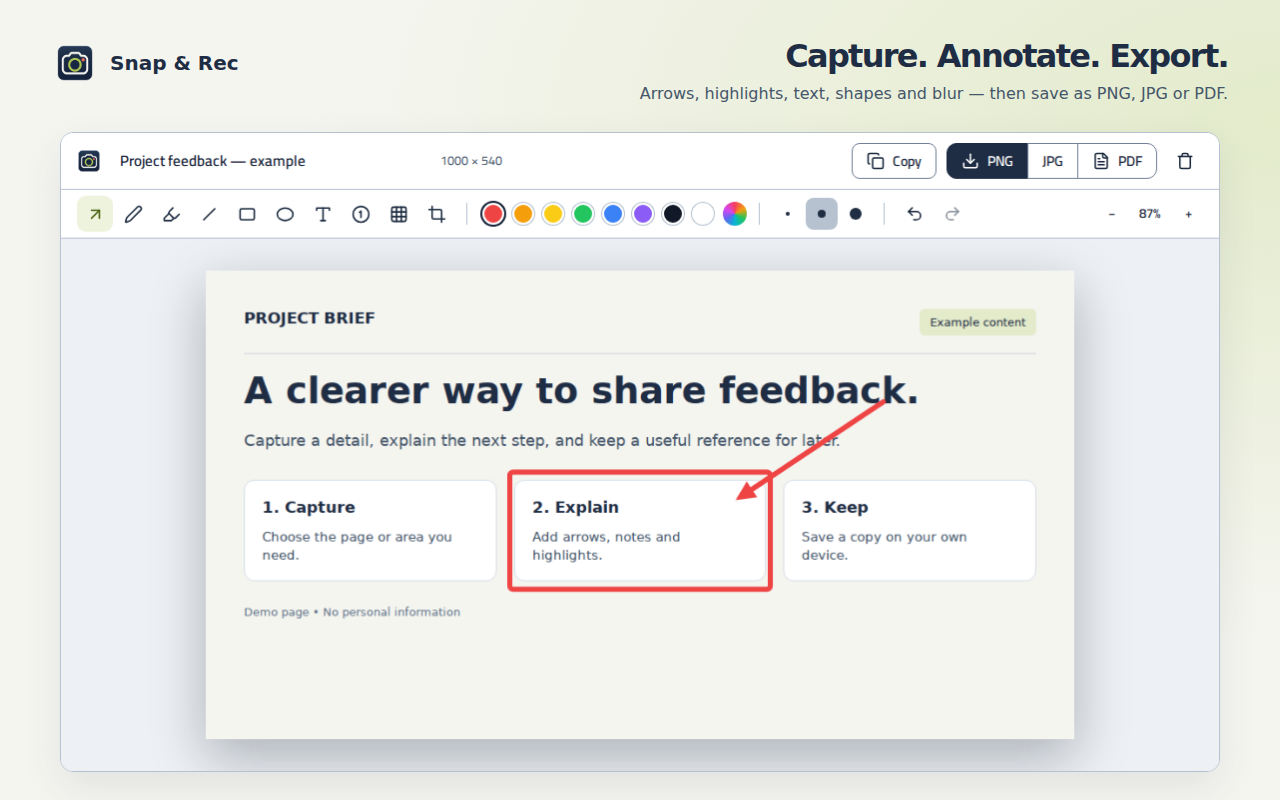
Capture the visible area, a selection, or a full page. Choose a window or screen through Chrome, and edit your image before exporting.
Selected area · Full page · Image editingRecord tab audio with or without your microphone. Choose your microphone, adjust each source’s volume, and pause or resume when you need.
MP3 · WAVRecord a tab, window, entire screen, or camera only. Choose your microphone and camera, and add a movable, resizable camera bubble in a circular, rounded-square, or wide shape.
MP4 · WebMChoose a 3, 5 or 10-second countdown, or turn it off. The default is 5 seconds; it is not included in the recording. The extension icon shows elapsed recording time.
Crop images and add arrows, highlights, text, shapes, numbered steps or blur. Copy your screenshot or export PNG, JPG or PDF.
Select your microphone and camera, adjust each audio source and choose recording quality. Includes Arabic and English, light/dark themes, shortcuts and guided tours.
Search by name and filter by media type or date. Play recordings, rename files and add notes. Export individual or multiple files, with separate export folders for each media type where the browser supports them.
Capture and conversion run on your device. The extension does not upload your screenshots or recordings to our servers or AI services, and no extension account is required. Export your files or delete them from the library.
Privacy policyClick “Add to Chrome”, install the extension from the store, and open it from the extensions toolbar.
Select screenshots, audio, or video. Choose the source and settings. Before audio or video recording, confirm that you have the right to record the content.
Take your screenshot or finish your recording. Review, organize and export the result from the library.
No duration limit is imposed by the extension. Available storage and your device and browser determine practical recording length.
In the local library inside your browser. You can export copies through downloads or to a folder you choose. Export important files before removing the extension or clearing its data; there is no backup on our servers.
Chrome restricts capture on some browser pages and protected content. Screen and window capture use Chrome’s source picker. Microphone and camera access require your permission when used.
Choose a 3, 5 or 10-second countdown, or turn it off. The default is 5 seconds, and the countdown disappears before recording starts. The extension icon shows elapsed recording time.
During a screen or window recording, optional access to all websites lets the bubble follow you between tabs. Without that permission, it stays on the tab where you started. Chrome’s internal pages do not support the bubble.
Rename saved files in the library. During an audio or video recording, you can cancel and discard the current recording after confirming the cancellation.
Mahmoud Harb, a non-programmer, built Snap & Rec using AI-assisted vibe coding. It is a simple example of what we teach at Smarter With AI: helping nontechnical people use AI in their lives and work, and build tools for their own needs.
Start with our free learning materials, follow a structured diploma, or book a consultation for your specific needs.